Muting and blocking fans
Mute a chat when a fan’s messages are too much for your notifications. Block a fan when he crosses the line. Both take a few seconds.

Mute a chat
2 steps
- 1
Open the chat
Click Chat at the top, then click the fan.Tap Chat at the bottom, then tap the fan.
Mute notifications
Click ••• at the top right of the chat, then click Mute notifications.Tap ••• at the top right, then tap Mute notifications.
A muted chat shows a bell with a line through it in your chat list. You still get the messages, you just don’t get notified. To undo it, click ••• and choose Unmute notifications.
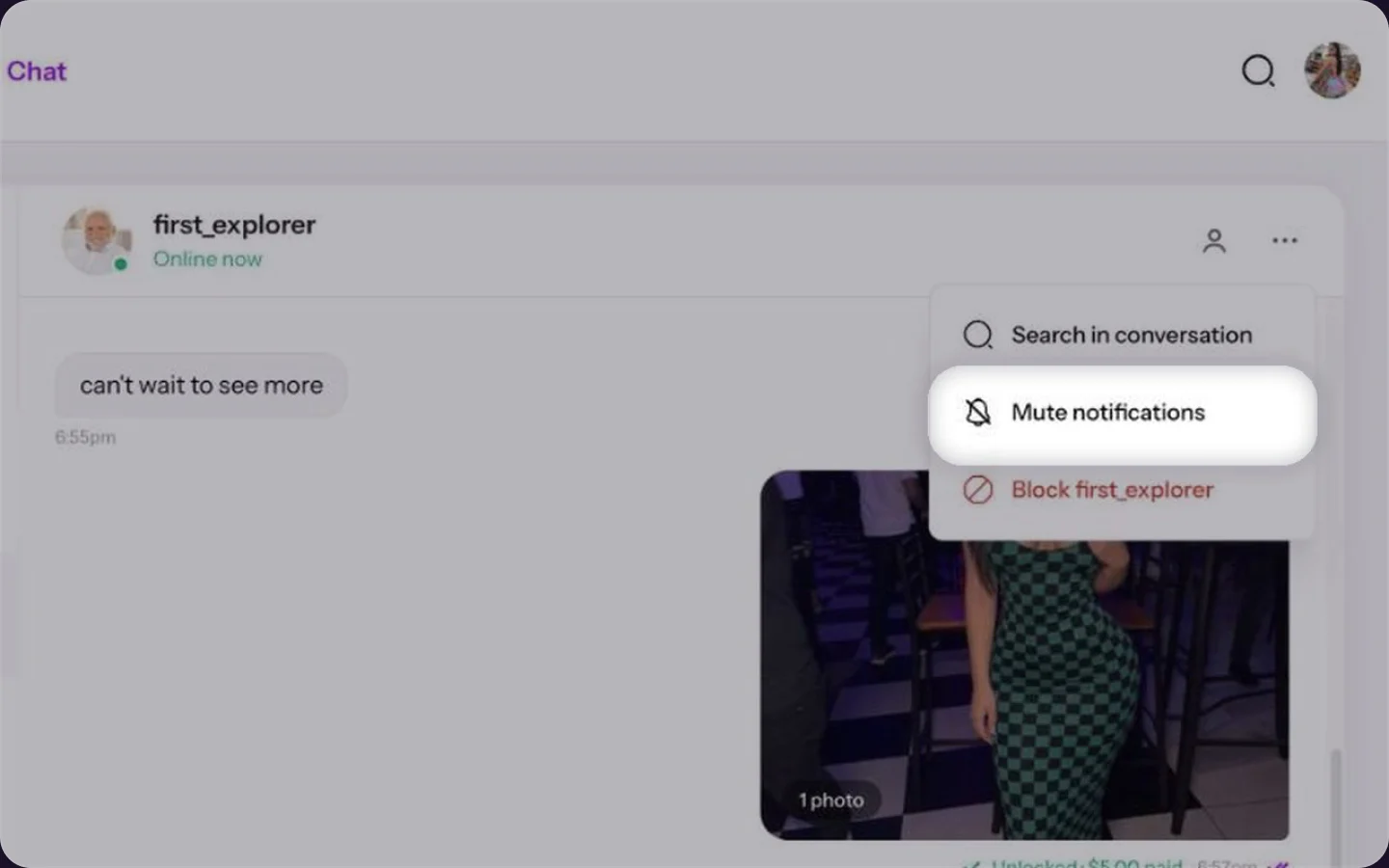
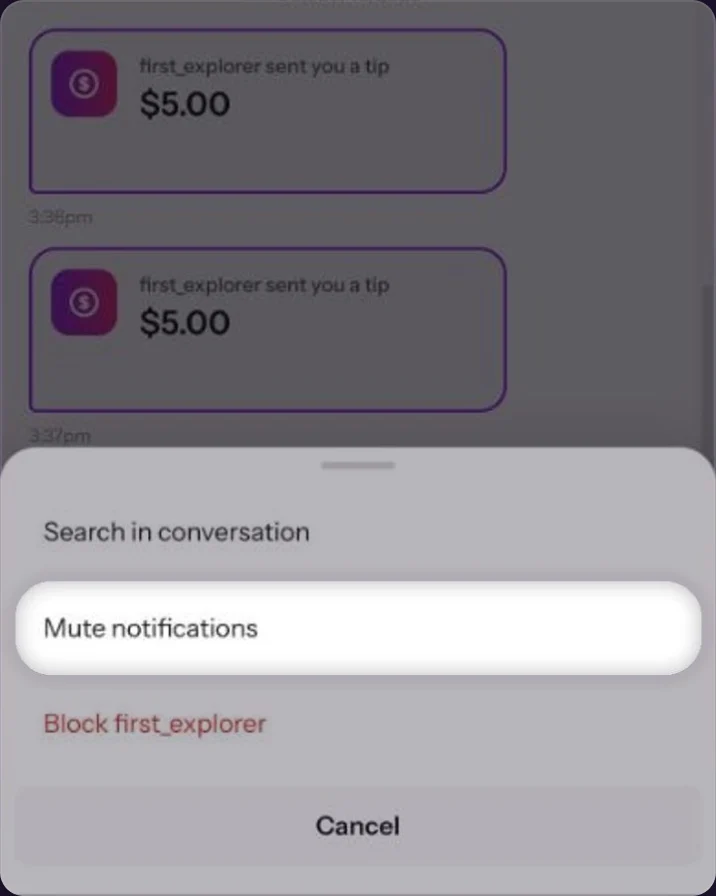
A muted chat in the list.
Block a fan
2 steps
- 1
Open the chat
Click Chat at the top, then click the fan.Tap Chat at the bottom, then tap the fan.
Block the fan
Click ••• at the top right of the chat, then click Block and the fan’s name.Tap ••• at the top right, then tap Block and the fan’s name.
Common questions
No. You still get every message in your chat list, only the notifications stop.
Use the Contact form with the topic Report content. Blocking only stops him from bothering you.
Keep reading
 Who can start a chat?Chat & fans
 Sending a paid message (PPV)Account & profile
 Privacy settings for creators