Choosing which notifications you get
Notifications tell you when something happens on your account — a new subscriber, a purchase, a payout or a message. You choose which alerts you want, and whether they arrive by email, in Chat, or both.


How to choose your notifications
5 steps
- 1
Open your profile menu
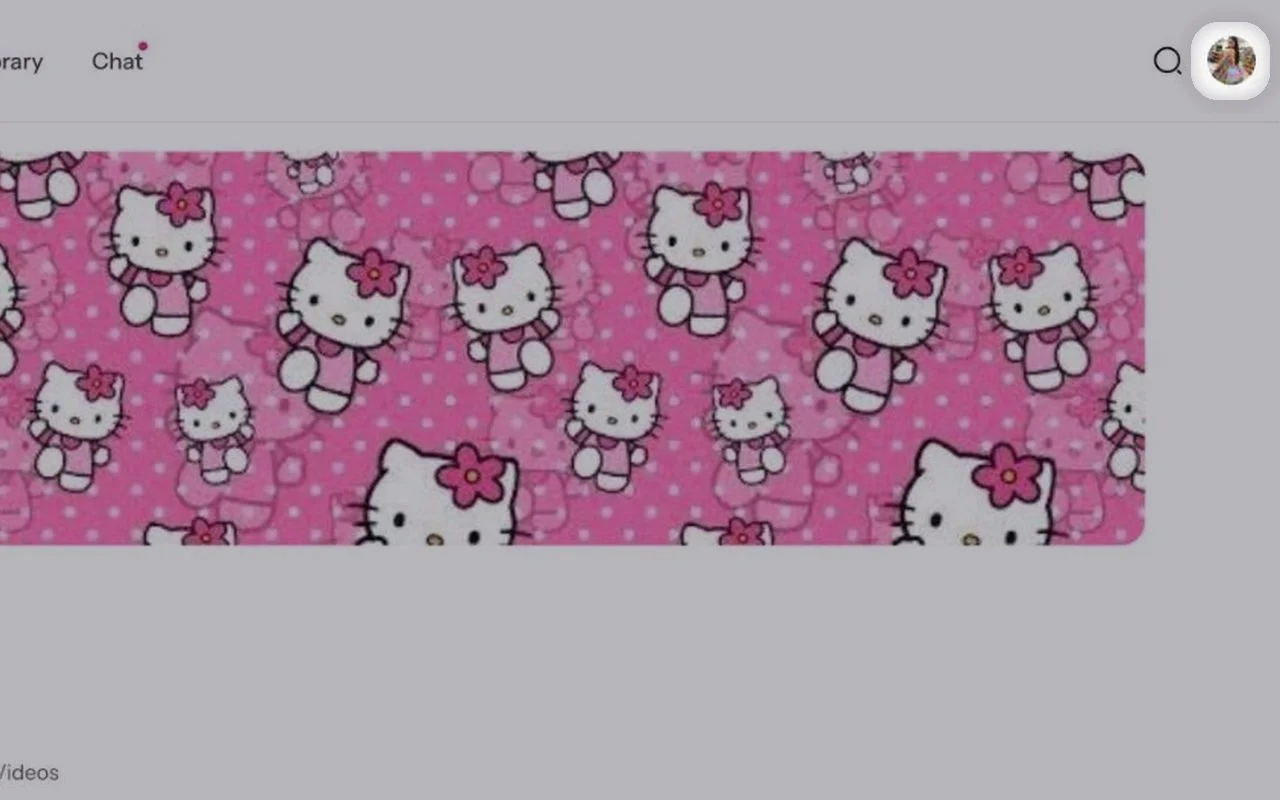
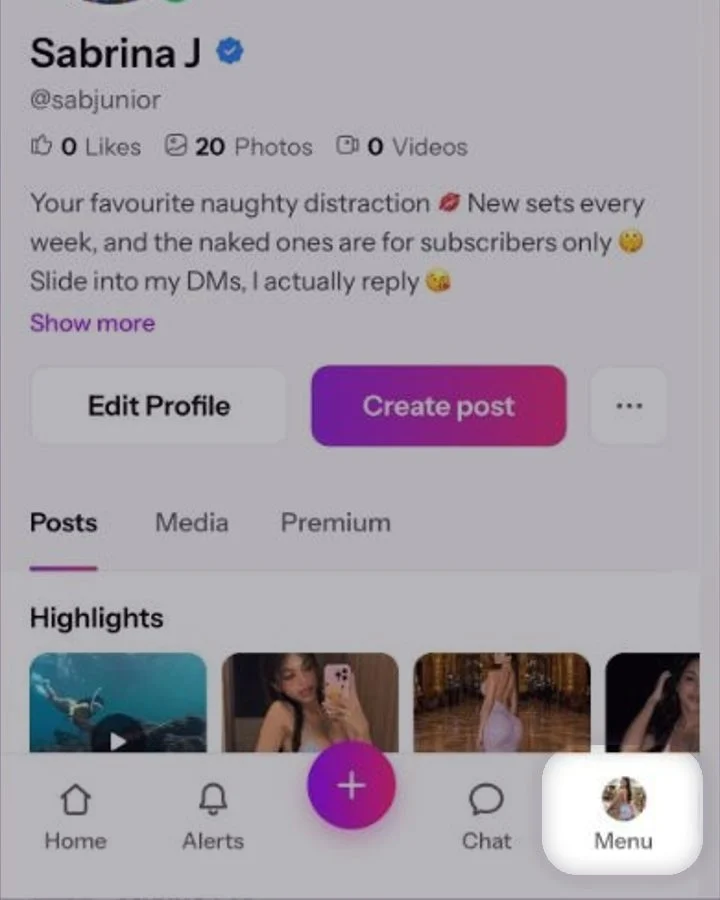
Click your profile photo in the top right corner.Tap Menu at the bottom right.
- 2
Go to Settings
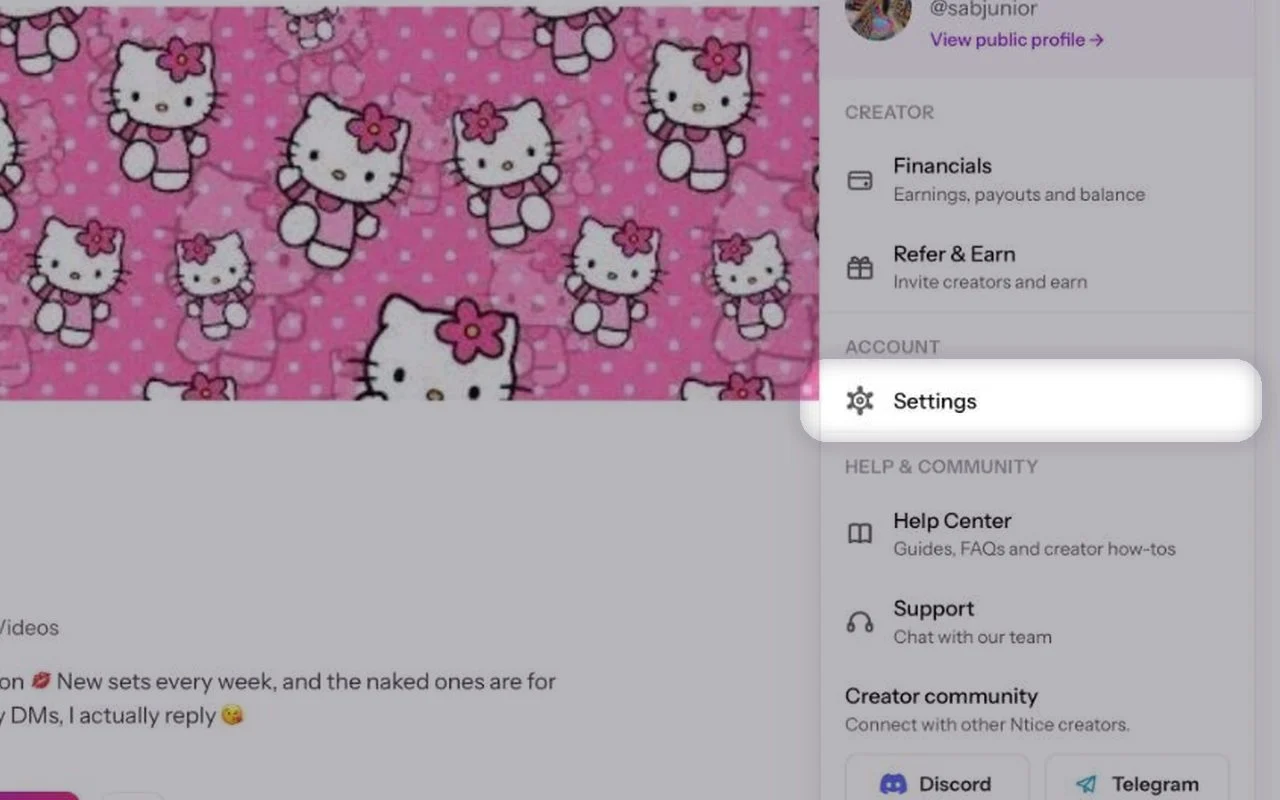
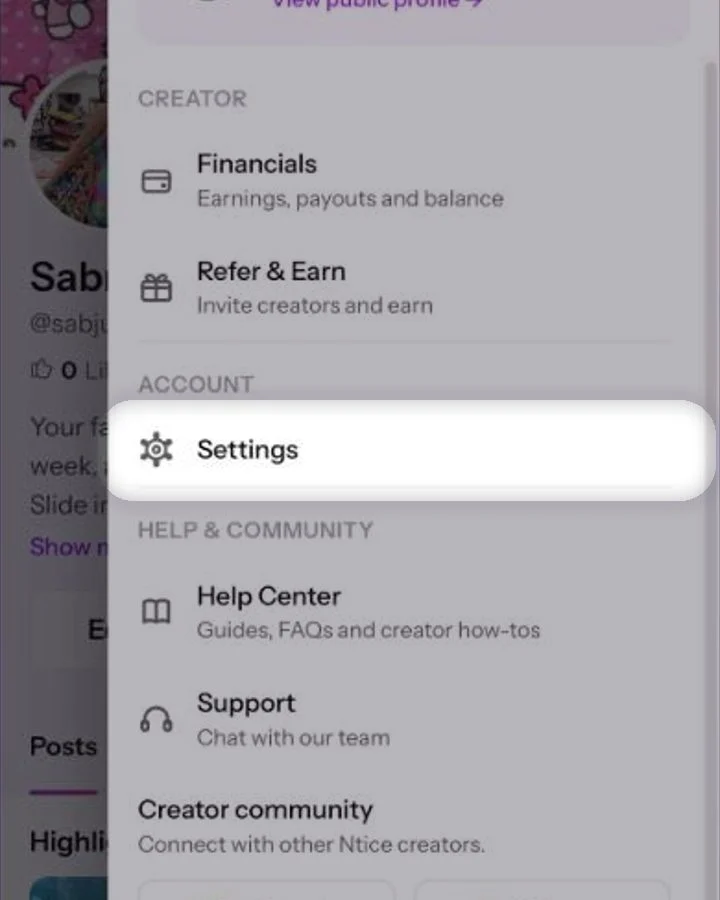
In the menu, click Settings.Tap Settings.
- 3
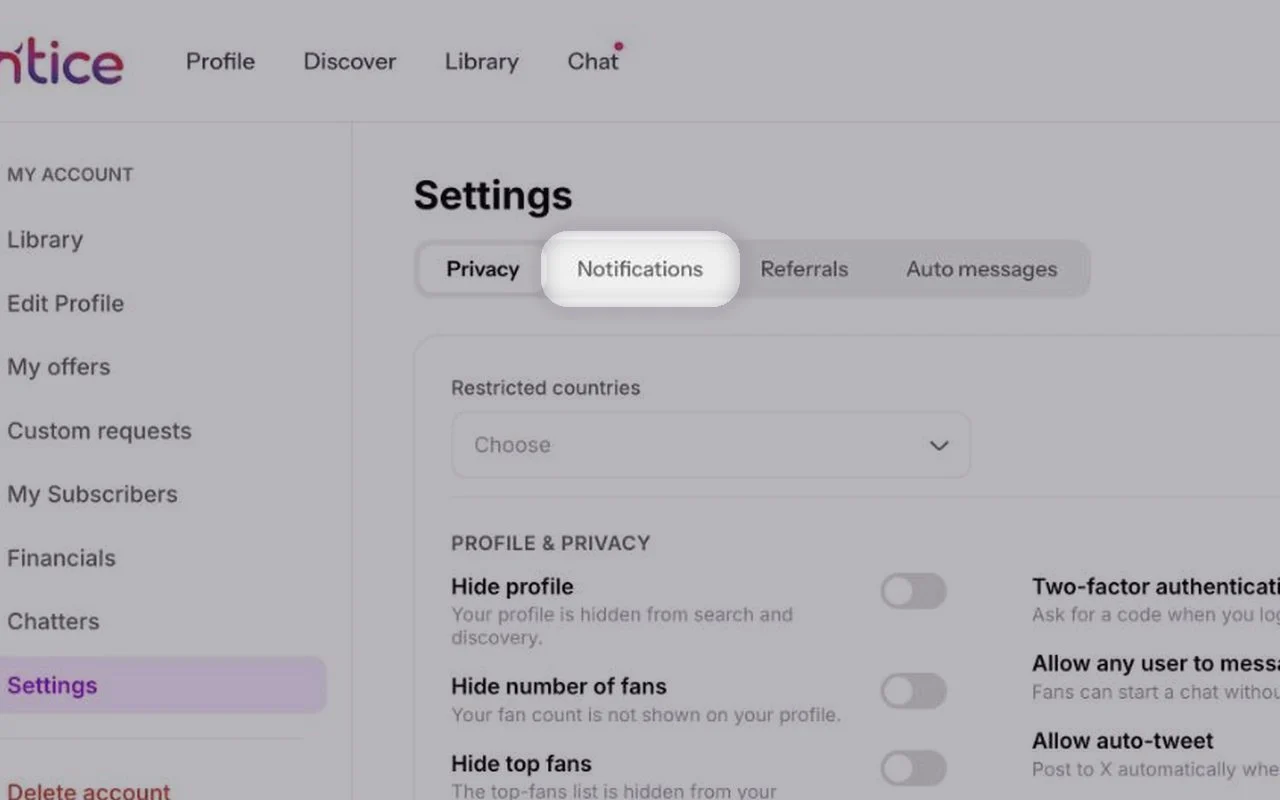
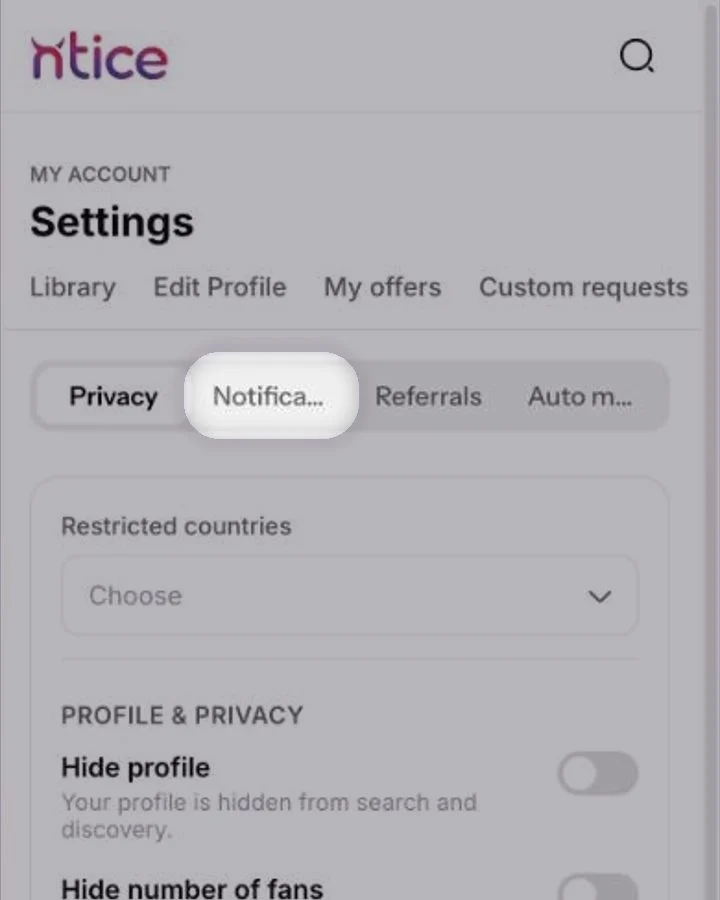
Open the Notifications tab
At the top of Settings, click Notifications.At the top of Settings, tap Notifications.
- 4
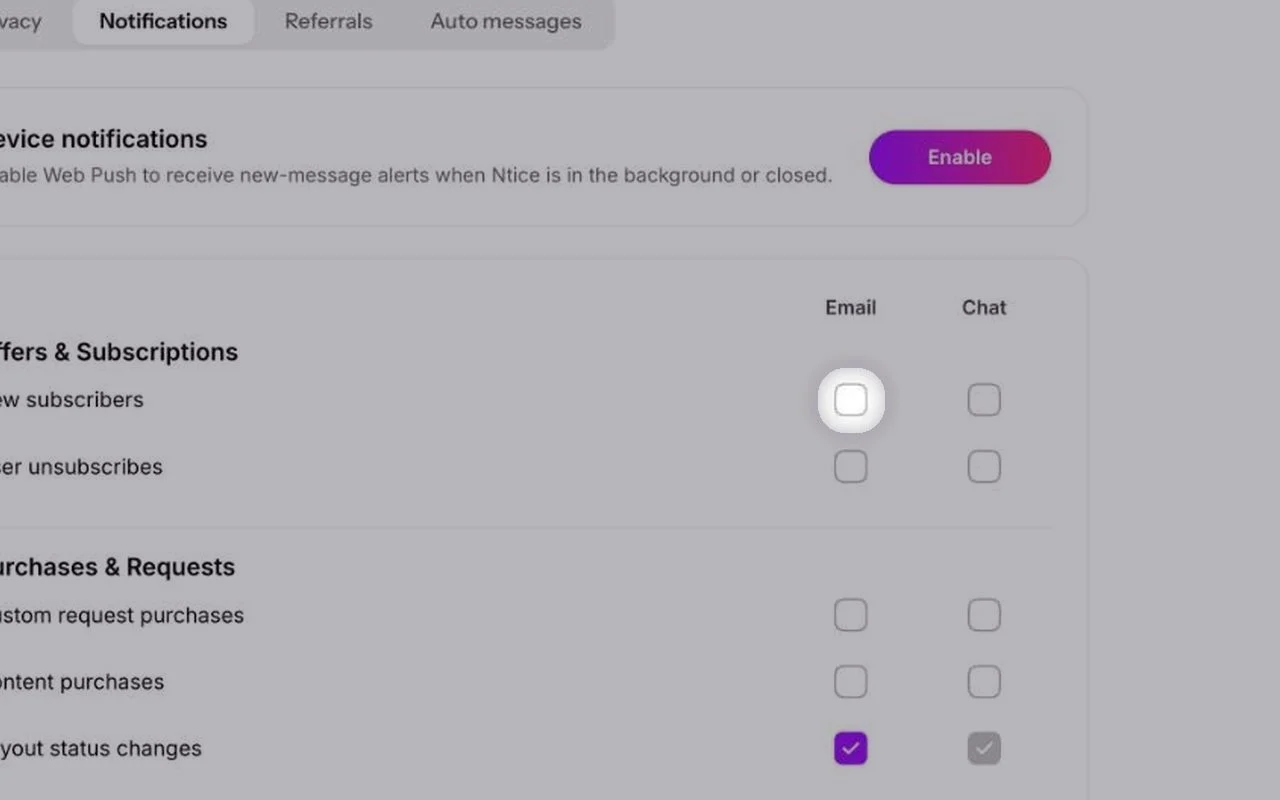
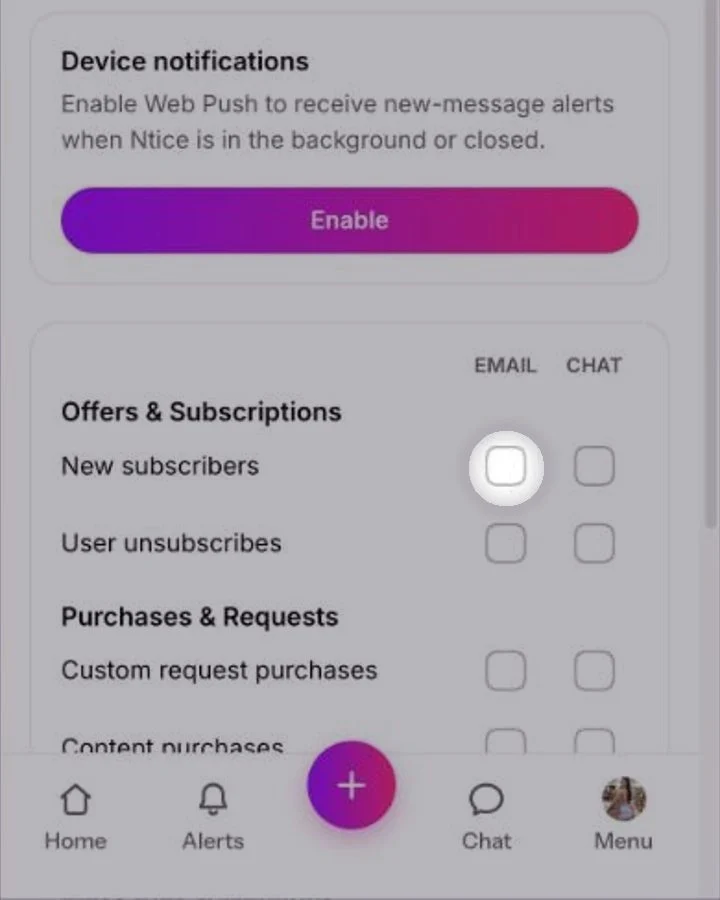
Pick how you get each alert
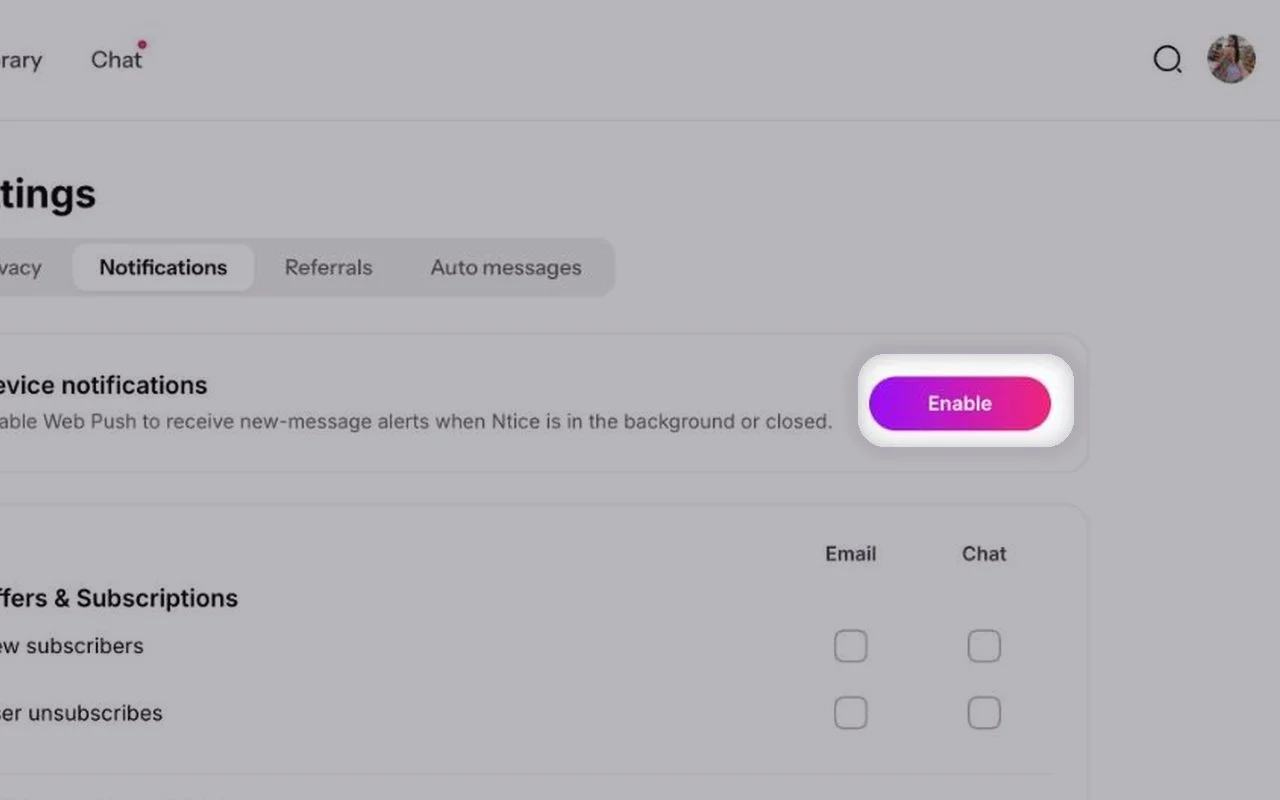
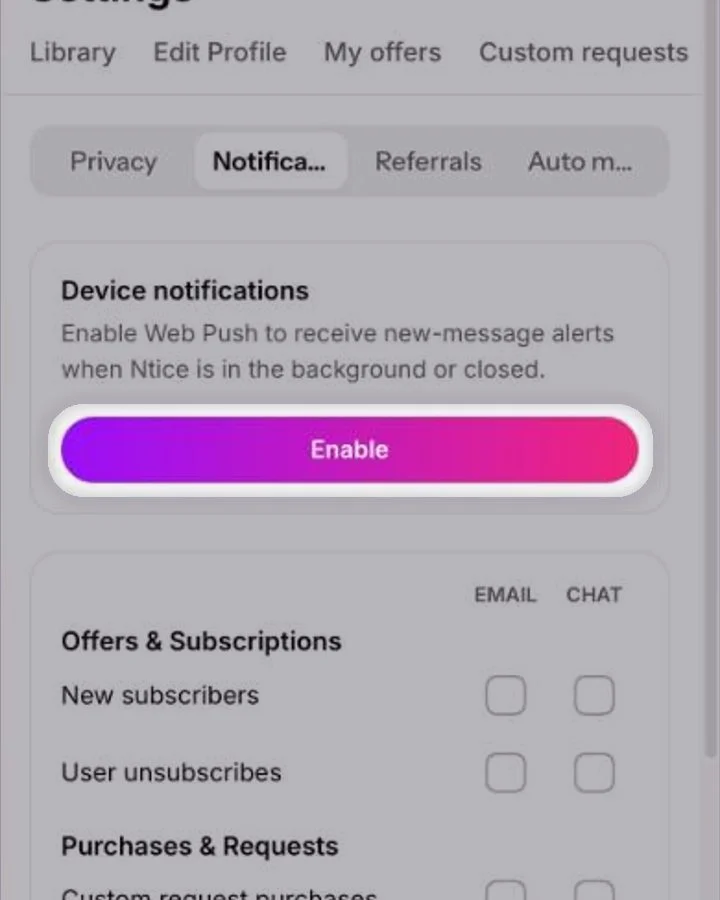
Tick Email, Chat or both next to each alert. A grey tick means the alert is always on.
Browser notifications
Device notifications shows if notifications are on in this browser. Click Disable to turn them off on this device.Device notifications shows if notifications are on for this phone. Tap Disable to turn them off on this device.
Which alerts are worth keeping on
- New subscribers. Send a quick thank-you while the fan is still excited — it builds loyalty.
- Content purchases. Know straight away when someone buys, so you can follow up in chat.
- Payout status changes. Always on, so you never miss when money is on its way.
Common questions
A grey tick means the alert is always on, for example system updates and payout status changes in Chat. They are important for your account.
In your Ntice Updates thread at the top of Chat.
Make sure Device notifications is on for this browser, and that your browser allows notifications for Ntice.
Keep reading
 Auto messages for new subscribersChat
 Who can start a chat?Account & profile
 Editing your creator profile